#359 by installs
Simple Custom CSS Plugin
Add Custom CSS to your WordPress site without any hassles.
- Installs
- 100,000+
- Rating
- 4.7 (159)
- Updated
- 20 months ago

Add custom css to the whole website and to specific posts and pages.
| Last updated | August 14, 2025Not updated for over a year |
|---|---|
| Tested up to | WordPress 6.8.12Older than WordPress 7.1.4, the current release |
| Needs WordPress | 4.0 or newer |
| Needs PHP | Not stated |
| First published | October 4, 2014 |
| Support, last two months | No threads opened |
4.8 / 5 from 89 reviews
| 5 stars | 82 |
|---|---|
| 4 stars | 2 |
| 3 stars | 1 |
| 2 stars | 2 |
| 1 star | 2 |
WP Add Custom CSS allows you to add custom CSS to the whole website and to individual posts, pages and custom post types (such as Woocommerce products).
The CSS rules applied to the whole website will override the default stylesheets of your theme and plugins, while the CSS rules applied to specific pages, posts or custom post types will override the main stylesheet too.
The plugin works with the most popular builders, such as Elementor, Gutenberg and the Classic Editor.
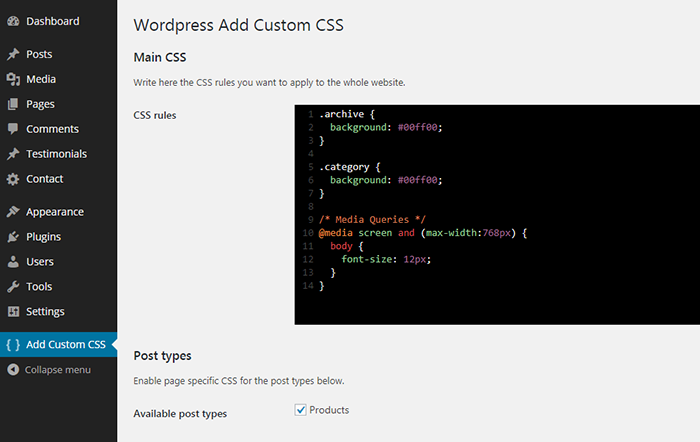
You can edit the main stylesheet from the the “Add custom CSS” settings page.
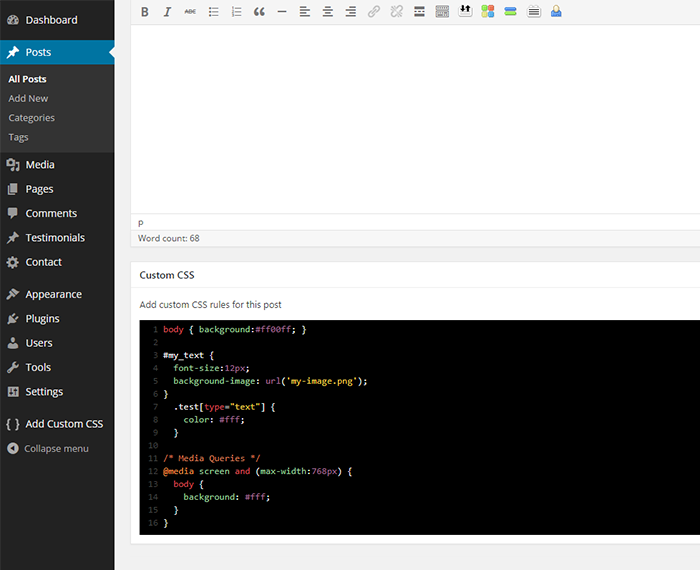
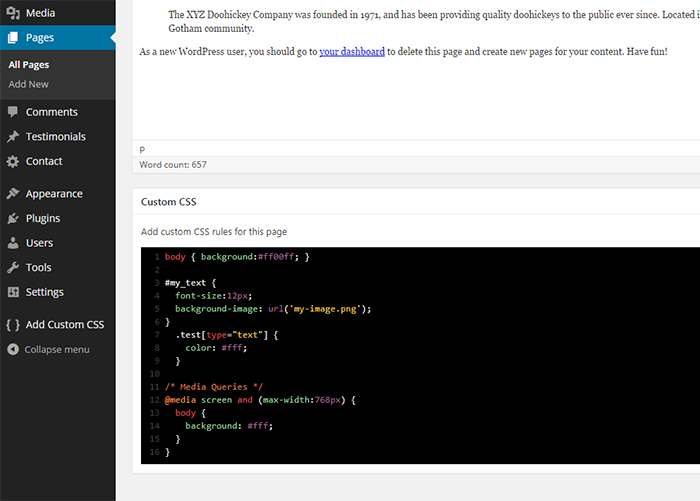
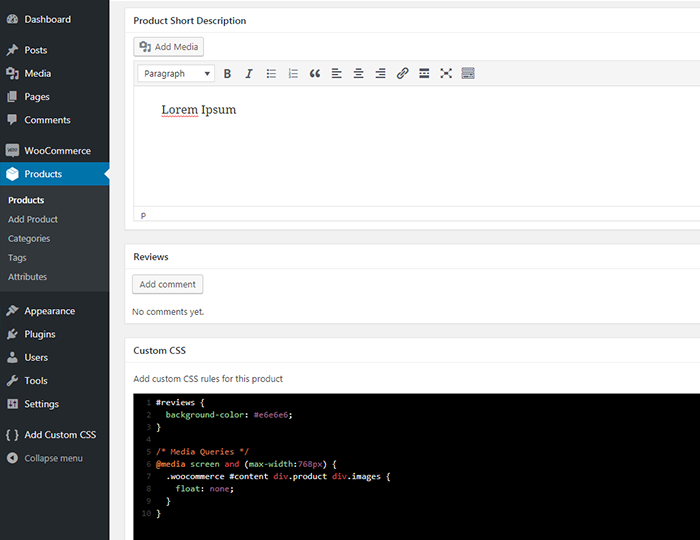
The plugin also creates a new “Custom CSS” box in the editing area to add custom CSS to specific posts, pages and custom post types.
Select the preferred CSS output method from the plugin’s settings page to ensure seamless integration with caching and minification plugins or to improve above-the-fold rendering performance.
The opening of the plugin's own description. The full text, installation notes and changelog are on its WordPress.org page.
Once the plugin is installed and activated, from your dashboard navigate to “Add custom CSS”, and write the CSS rules in the textarea.
Once the plugin is installed and activated, you will find a new box called “Custom CSS” in your post/page editing area.
Once the plugin is installed and activated, from your dashboard navigate to “Add custom CSS”, check the desired custom post types and save. You will find a new box called “Custom CSS” in your custom post type editing area.
To improve your website’s speed, it’s generally recommended to select “Use a CSS file”, which allows optimization plugins to cache and minify the output.
Choosing “Use a style tag in the HTML head” outputs the CSS directly in the of the page, which can improve above-the-fold rendering performance.
By default, the “Use WordPress hook” option is selected to maintain backward compatibility.
Click on the “Screen option” link from your post/page editing area and be sure the “Custom CSS” option is checked.
#359 by installs
Add Custom CSS to your WordPress site without any hassles.

#545 by installs
Add CSS to your website through an admin editor, the Customizer or a metabox for page/post specific CSS.
Easily add code snippets in WordPress. Insert header & footer scripts, add PHP code snippets with conditional logic, insert ads pixel code, and more.

#101 by installs
Easily add Custom CSS or JS to your website with an awesome editor.

#204 by installs
Include inline javascript, stylesheets, CSS code or anything you want in Header and Footer areas of your WordPress with ease.

#471 by installs
Add CSS animations and scroll effects to any Gutenberg block. Choose from fade, slide, zoom & more, with delay and duration controls — no code needed.
Read from the WordPress.org plugin API on , when WordPress 7.1.4 was the current release. WordPress.org rounds active installs into buckets. These are the directory's figures, not my verdict, and I haven't tested this plugin.