
#195 by installs
Sticky Header Effects for Elementor
The original Elementor sticky header & sticky menu plugin. Transparent, fixed & scroll effects (blur, shrink, hide) on Elementor Free or Pro.
- Installs
- 300,000+
- Rating
- 4.5 (69)
- Updated
- 43 days ago
Sticky Menu or Sticky Header sticks elements at the top of the screen when you scroll, or create a floating sticky menu or fixed widget.
| Last updated | August 16, 2026Updated in the last 3 months |
|---|---|
| Tested up to | WordPress 7.1.4Covers WordPress 7.1.4, the current release |
| Needs WordPress | 3.6 or newer |
| Needs PHP | 5.2 or newer |
| First published | September 19, 2014 |
| Support, last two months | 2 of 2 threads resolved (100%) |
4.7 / 5 from 763 reviews
| 5 stars | 680 |
|---|---|
| 4 stars | 33 |
| 3 stars | 5 |
| 2 stars | 6 |
| 1 star | 39 |
The WP Sticky Menu (or Sticky Header) On Scroll plugin allows you to make any element on your pages “sticky” as soon as it hits the top of the page when you scroll down. Although this is commonly used to keep menus at the top of your page to create floating menus, the plugin allows you to make any element sticky. Make a sticky header, stick menu, sticky widget (fixed widget), sticky logo, sticky call to action or a floating menu.
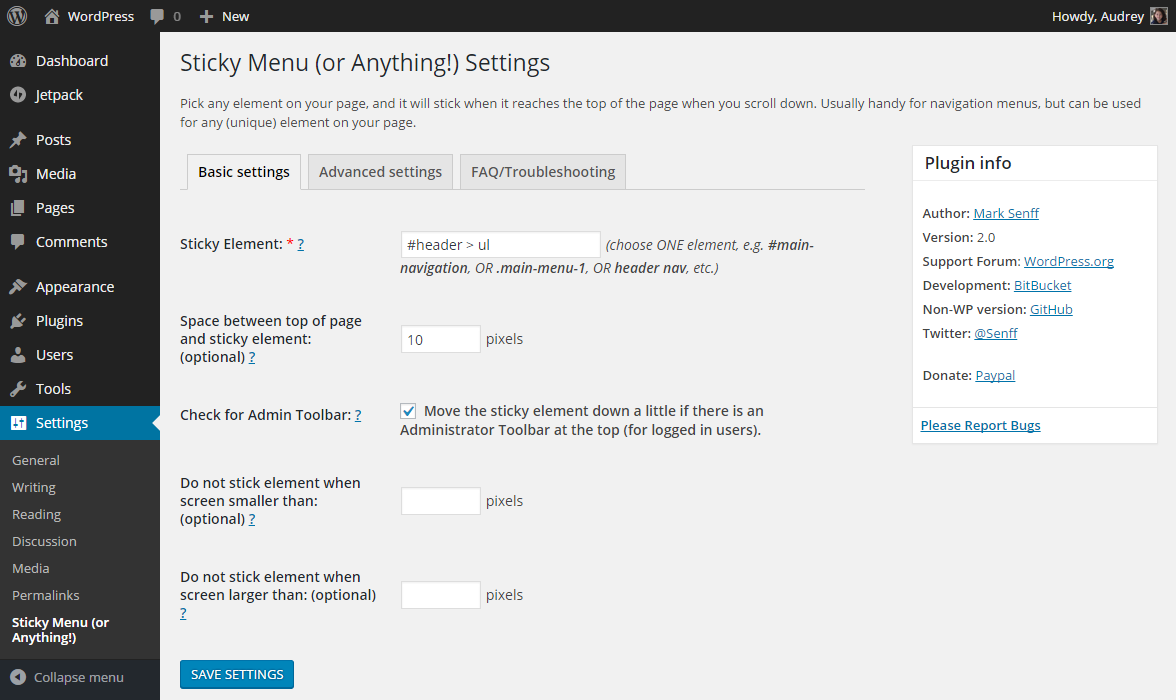
You just need to know how to pick the right selector for the element you want to make sticky, and you need to be sure it’s a unique selector. Sometimes a simple selector like “nav”, “#main-menu”, “.menu-main-menu-1” is enough. Other times you will have to be more detailed and use a more specific selector such as “header > ul:first-child” or “nav.top .menu-header ul.main”. If you don’t like messing with any code check out out the visual element picker in WP Sticky PRO.
Features
The opening of the plugin's own description. The full text, installation notes and changelog are on its WordPress.org page.
Sure, WP Sticky PRO has that option. You can make as many elements sticky as you like and configure settings individually for each element.
First, make sure that if you select the element by its class name, it is preceded by a dot (e.g. “.main-menu”), and if you select it by its ID, that it’s preceded by a pound/hash/number sign (e.g. “#main-menu”). Also, make sure there is only ONE element on the page with the selector you’re using. If there is none, or more than one element that matches your selector, nothing will happen.
Due to the nature of CSS, there are situations where an element will not stick properly, usually if it has specific properties that are used to manipulate its location and/or dimensions. If your sticky element has any of the following properties, this could cause conflicts:
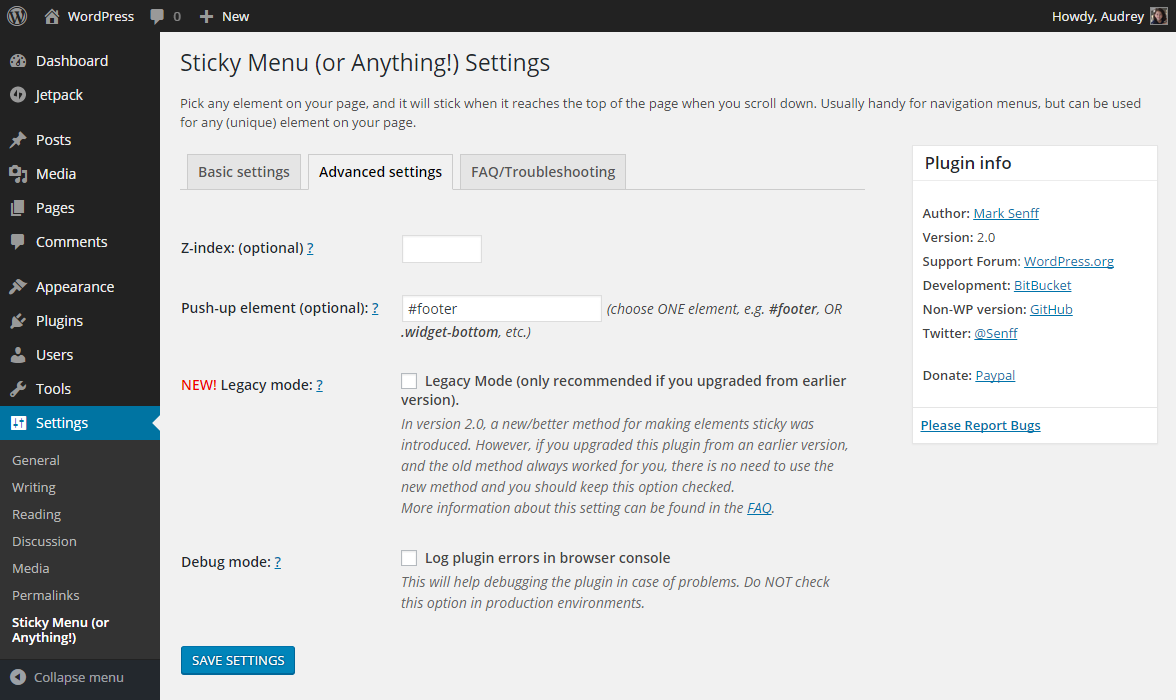
This is a known (and annoying) bug in the plugin that I haven’t been able to solve properly yet. For some sites (when the element does not contain any JavaScript interactivity, usually), it sometimes helps to use the plugin in Legacy Mode (see below).
To add styles to your sticky element when it’s not sticky, use class name “.element-is-not-sticky”.
To add styles to your sticky element only when it’s sticky, use class name “.element-is-sticky”
The following code would give your element a red background only when it’s not sticky, and blue only when it is:
.element-is-not-sticky {
background: red;
}
.element-is-sticky {
background: blue;
}
If you’re using the plugin in Legacy Mode (see below), this happens when the sticky element (or any of its contents) has a CSS transition applied to it. Because the original element becomes invisible (and a cloned copy of it becomes visible), the visible-to-invisible status change will take place with a transition (ie. not instantly).
#195 by installs
The original Elementor sticky header & sticky menu plugin. Transparent, fixed & scroll effects (blur, shrink, hide) on Elementor Free or Pro.
Create a welcome notification bar for your website. Also, My Sticky Bar plugin can make your menu or header sticky to the top when scrolled 📌
#992 by installs
Easily create floating menus of varying complexity. Use its capabilities to place unique navigation on the site.

#576 by installs
More attention and a higher ad performance with fixed sticky widgets.
Read from the WordPress.org plugin API on , when WordPress 7.1.4 was the current release. WordPress.org rounds active installs into buckets. These are the directory's figures, not my verdict, and I haven't tested this plugin.
