
#157 by installs
Admin Menu Editor
Lets you edit the WordPress admin menu. You can re-order, hide or rename menus, add custom menus and more.
- Installs
- 300,000+
- Rating
- 4.6 (312)
- Updated
- 2 months ago

Display tailored menu items to each visitor with visibility rules
| Last updated | December 5, 2024Not updated for over a year |
|---|---|
| Tested up to | WordPress 6.7.11Older than WordPress 7.1.4, the current release |
| Needs WordPress | Not stated |
| Needs PHP | 6.0 or newer |
| First published | October 10, 2012 |
| Support, last two months | No threads opened |
4.1 / 5 from 130 reviews
| 5 stars | 91 |
|---|---|
| 4 stars | 8 |
| 3 stars | 7 |
| 2 stars | 3 |
| 1 star | 21 |
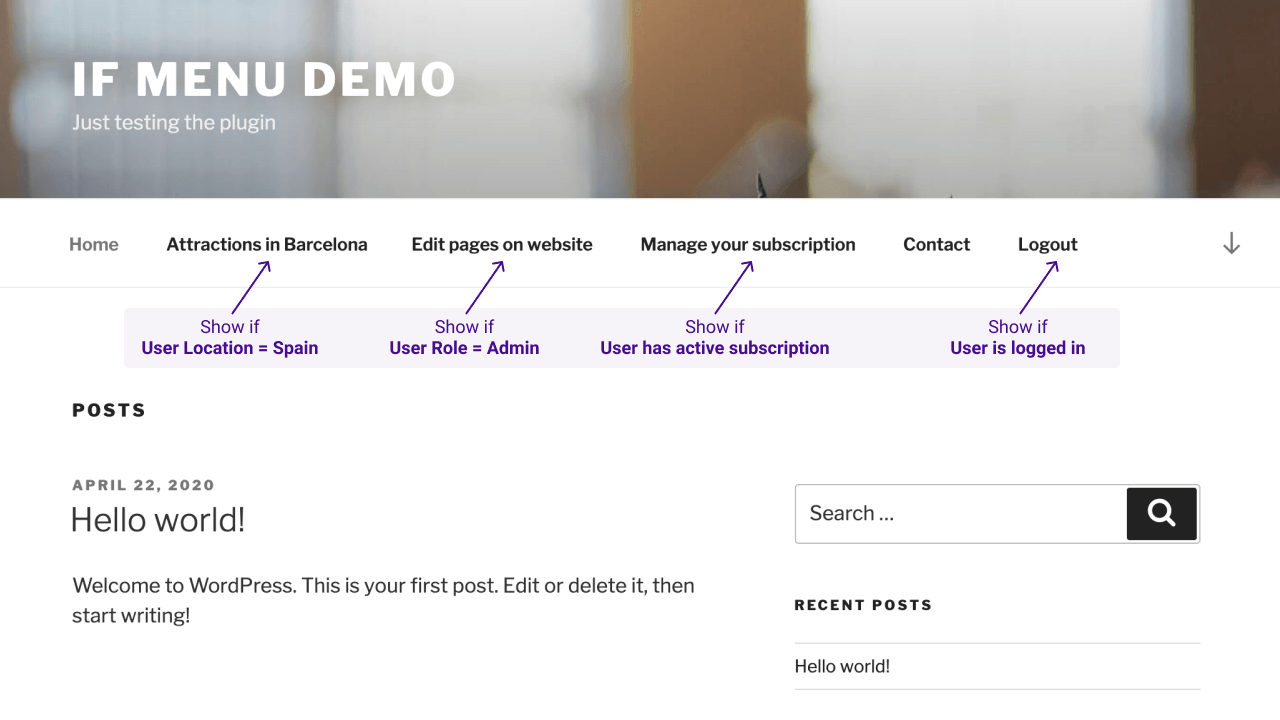
Control what menu items your site’s visitors see, with visibility rules. Here are a few examples:
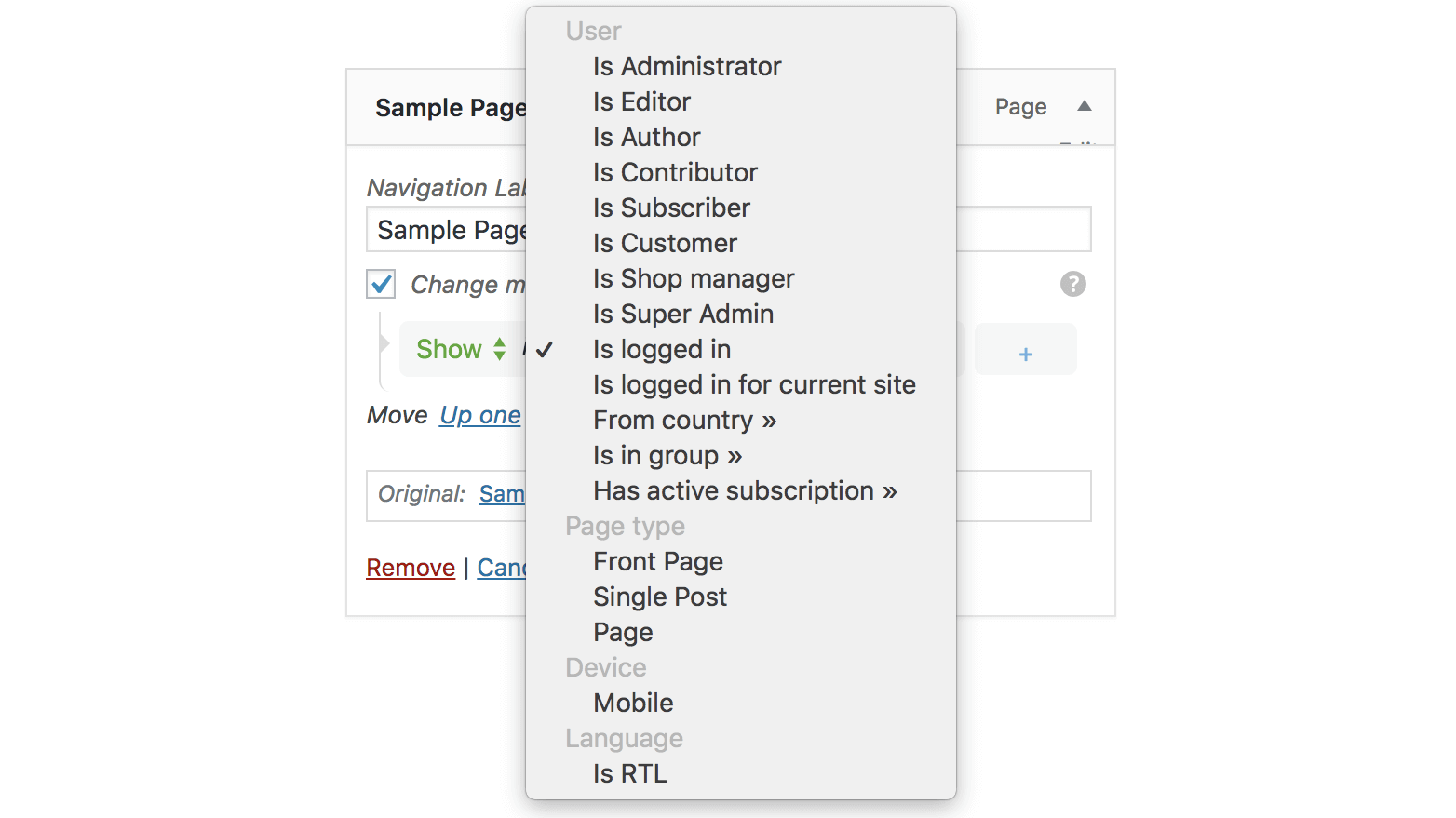
After the plugin is enabled, each menu item will have a new option “Change menu item visibility” which will enable the selection of visibility rules.
Check the examples in screenshots or try it here → demos.layered.store
Features
The opening of the plugin's own description. The full text, installation notes and changelog are on its WordPress.org page.
One of the most popular uses of the plugin is to show the “Register/Login” menu for non-logged-in users, and “Your account” for logged-in users.
To enable this for “Register/Login” menu, follow these steps:
1. Go to WordPress Admin on your website -> Appearance -> Menus
2. Expand the menu item for “Register” or “Login” page
3. Enable the option “Enable visibility rules”
Multiple visibility rules can be used at once, like so:
For showing a menu item only for admins on desktop:
1. Go to WordPress Admin on your website -> Appearance -> Menus
2. Expand the menu item you want
3. Enable the option “Enable visibility rules”
4. Choose the rule “Show if user is Administrator”
5. Click the “+” button at the end of the visibility rule, and change to “AND”
There’s a known limitation with adding functionality for menu items in WordPress, and conflicts may happen between some plugins and themes.
If there are multiple plugins that extend Menu Items, for example If Menu and a plugin for Menu Icons, only one of them can add the needed functionality and the other one won’t work as expected.
This problem may happen on sites with a large number of menu items.
In most cases, this is not a limitation or problem caused by plugins or WordPress, but by the hosting server.
Your hosting provider or server limits the amount of data that can be sent to WordPress for saving in database.
New rules can be added by any other plugin or theme.
Example of adding a new custom rule for displaying/hiding a menu item when current page is a custom-post-type.
// theme's functions.php or plugin file add_filter('if_menu_conditions', 'my_new_menu_conditions');
WordPress provides a lot of functions which can be used to create custom rules for almost any combination that a theme/plugin developer can think of.

#157 by installs
Lets you edit the WordPress admin menu. You can re-order, hide or rename menus, add custom menus and more.

#166 by installs
An easy to use mega menu plugin. Written the WordPress way.

#186 by installs
The best WordPress membership and user role editor plugin. Edit roles, restrict content, and now manage it all with an AI assistant.

#407 by installs
Adds an image or icon in the menu items. You can choose the position of the image (after, before, above, below) or even hide the menu item title.

#451 by installs
Easily duplicate your WordPress menus with one click.

#468 by installs
Protect email addresses and phone numbers on your site and hide them from spambots. Easy to use & flexible.
Read from the WordPress.org plugin API on , when WordPress 7.1.4 was the current release. WordPress.org rounds active installs into buckets. These are the directory's figures, not my verdict, and I haven't tested this plugin.