Optimize PageSpeed Performance & Core Web Vitals, Advanced Cache, Minify CSS & JavaScript, Inline Critical CSS, Defer CSS & JS, Smush & Lazy Load, CDN
- Installs
- 70,000+
- Rating
- 4.7 (1.5K)
- Updated
- 2 months ago
Speed up your WordPress site by unloading unnecessary CSS and JavaScript, reducing page bloat, and managing your own Critical CSS per page type.
| Last updated | September 16, 2026Updated in the last 3 months |
|---|---|
| Tested up to | WordPress 7.1.4Covers WordPress 7.1.4, the current release |
| Needs WordPress | 4.7 or newer |
| Needs PHP | 5.6 or newer |
| First published | December 3, 2015 |
| Support, last two months | No threads opened |
4.9 / 5 from 1,564 reviews
| 5 stars | 1,515 |
|---|---|
| 4 stars | 22 |
| 3 stars | 6 |
| 2 stars | 11 |
| 1 star | 10 |
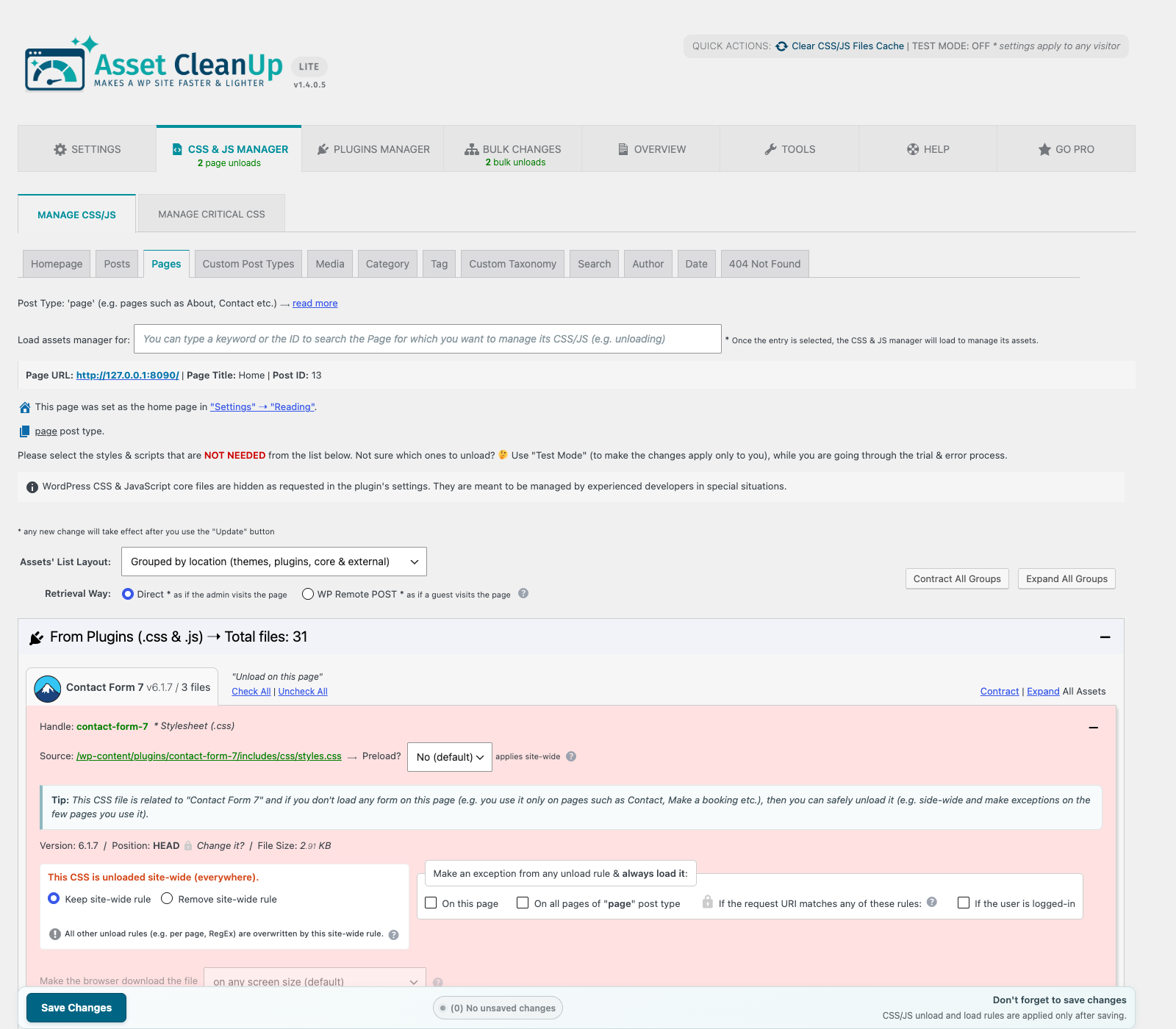
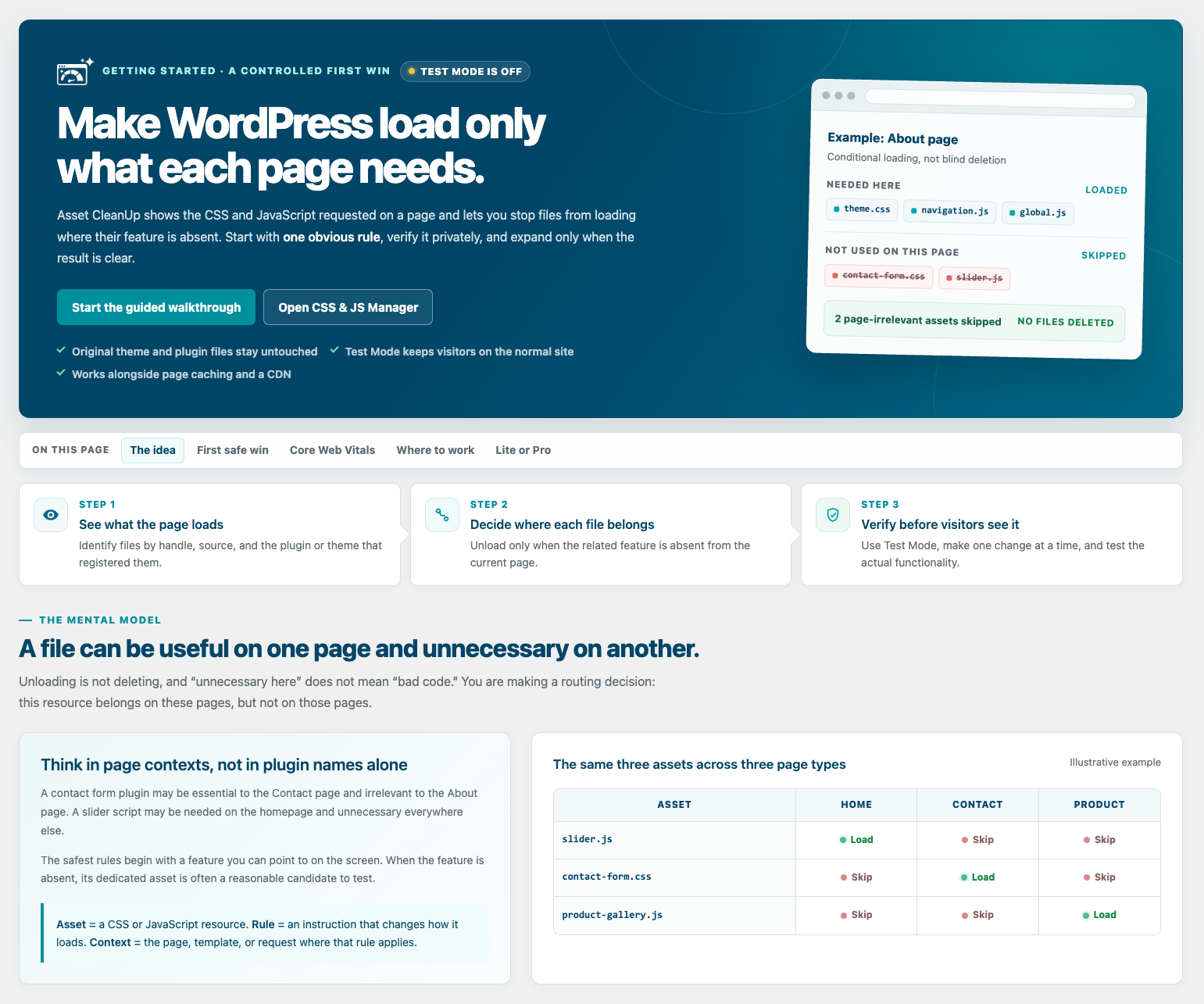
WordPress themes and plugins often load CSS and JavaScript on pages that do not use them. A contact form may load on the homepage, a slider may load on a plain article, or store-related files may load outside the shop.
Asset CleanUp shows you what each page loads and lets you unload what is not needed. This can reduce HTTP requests, page weight, and browser work while complementing your existing caching setup.
Use Test Mode to validate changes as an administrator before they affect visitors.
Asset CleanUp gives you precise, testable control over every optimization.
A safer workflow, without giving up control
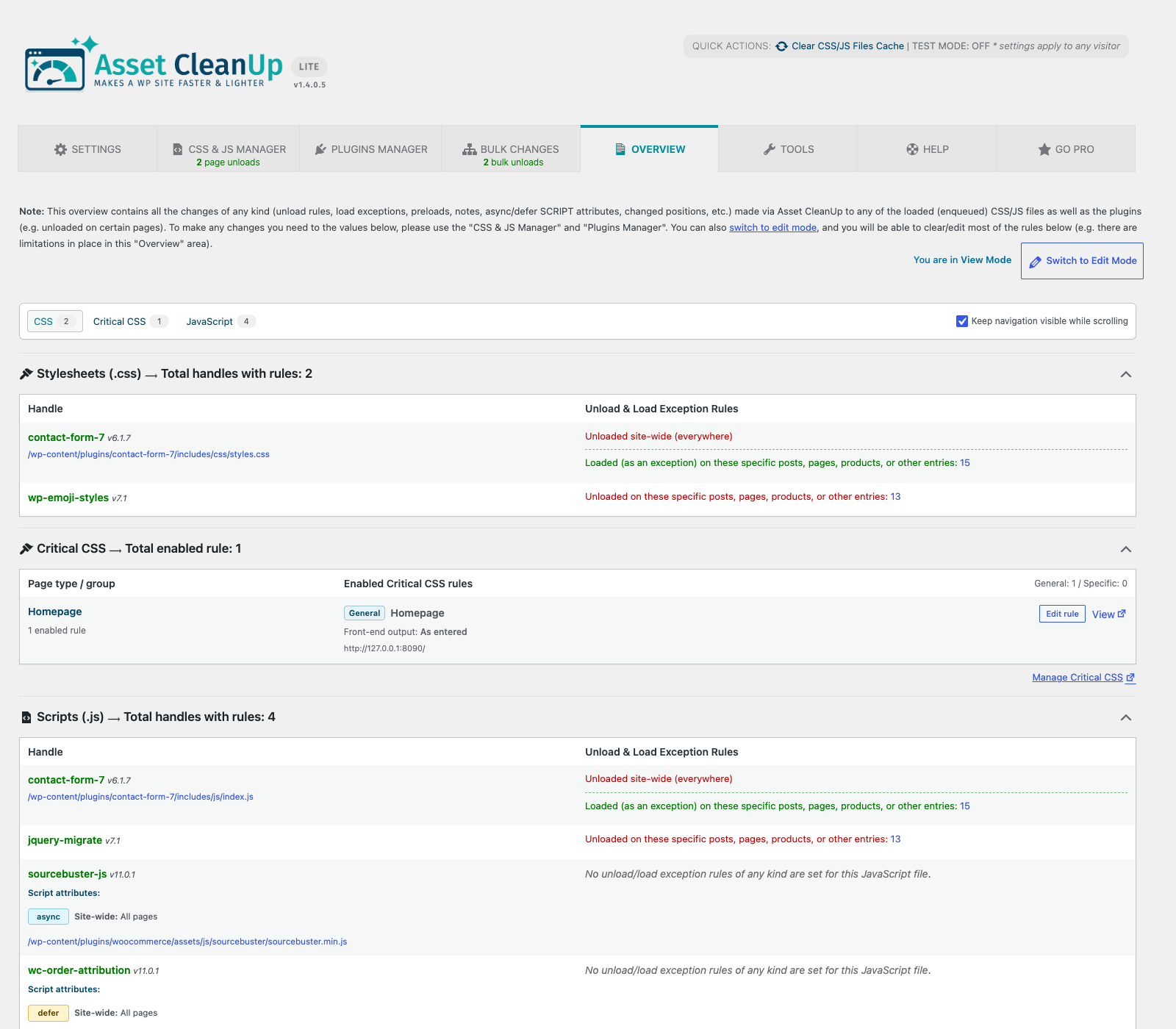
The Dashboard keeps the technical detail experienced users need while guiding first-time users through Getting Started, Test Mode, and the central Overview page. Test changes before they affect visitors, then review and manage existing or leftover rules from one place.
CSS and JavaScript management
The opening of the plugin's own description. The full text, installation notes and changelog are on its WordPress.org page.
No. Asset CleanUp controls which CSS, JavaScript, and other optimizations WordPress outputs. It works best alongside a page cache, server cache, or CDN.
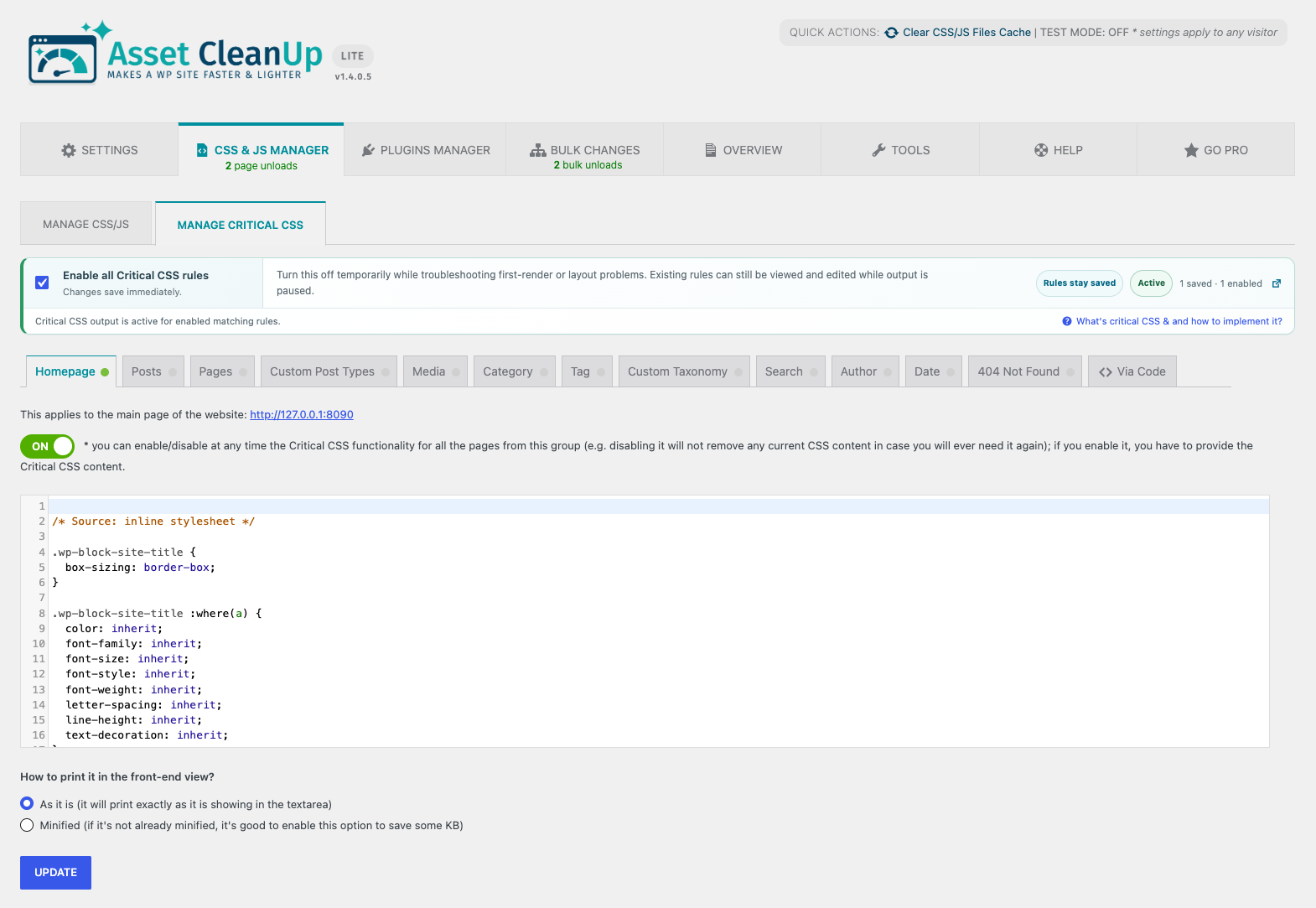
No. You decide which assets to unload and provide any Critical CSS yourself. This keeps each optimization inspectable and under your control, but it also means that every change should be tested.
It can help when unnecessary CSS or JavaScript contributes to transfer size, render blocking, or browser work. Results still depend on your theme, plugins, hosting, caching, media, third-party scripts, and configuration. No plugin can guarantee a particular score.
Yes, if that file is required for the page’s layout or functionality. Use Test Mode, make one meaningful change at a time, and test desktop, mobile, forms, navigation, popups, and other interactive elements before publishing the rule to visitors.
Start with obvious candidates:
Avoid unloading WordPress core files or dependency files unless you understand what relies on them.
The most common cause is caching. Clear plugin, server, browser, and CDN caches, then test as a logged-out visitor. Also check whether Test Mode is still enabled and whether another optimization plugin is applying the same type of rule.
See the detailed troubleshooting guide.
Optimize PageSpeed Performance & Core Web Vitals, Advanced Cache, Minify CSS & JavaScript, Inline Critical CSS, Defer CSS & JS, Smush & Lazy Load, CDN

#245 by installs
Speed up your WordPress site with one-click optimizations like Page Cache, Critical CSS, and Image CDN to improve Core Web Vitals.
Speed up your website. Optimize your JPEG, PNG, and WebP images automatically with TinyPNG.

Boost site speed and performance with an all-in-one cache and speed optimization plugin. Pass Core Web Vitals with CDN, image optimization, lazy loadi …
Read from the WordPress.org plugin API on , when WordPress 7.1.4 was the current release. WordPress.org rounds active installs into buckets. These are the directory's figures, not my verdict, and I haven't tested this plugin.