
#4 by installs
Classic Editor
Enables the previous "classic" editor and the old-style Edit Post screen with TinyMCE, Meta Boxes, etc. Supports all plugins that extend this screen.
- Installs
- 8+ million
- Rating
- 4.9 (1.3K)
- Updated
- 5 months ago

Extends and enhances the block editor (Gutenberg) and the classic editor (TinyMCE).
| Last updated | August 26, 2026Updated in the last 3 months |
|---|---|
| Tested up to | WordPress 7.1.4Covers WordPress 7.1.4, the current release |
| Needs WordPress | 6.5 or newer |
| Needs PHP | 5.6 or newer |
| First published | June 22, 2007 |
| Support, last two months | 1 of 3 threads resolved (33%) |
4.5 / 5 from 354 reviews
| 5 stars | 286 |
|---|---|
| 4 stars | 26 |
| 3 stars | 11 |
| 2 stars | 3 |
| 1 star | 28 |
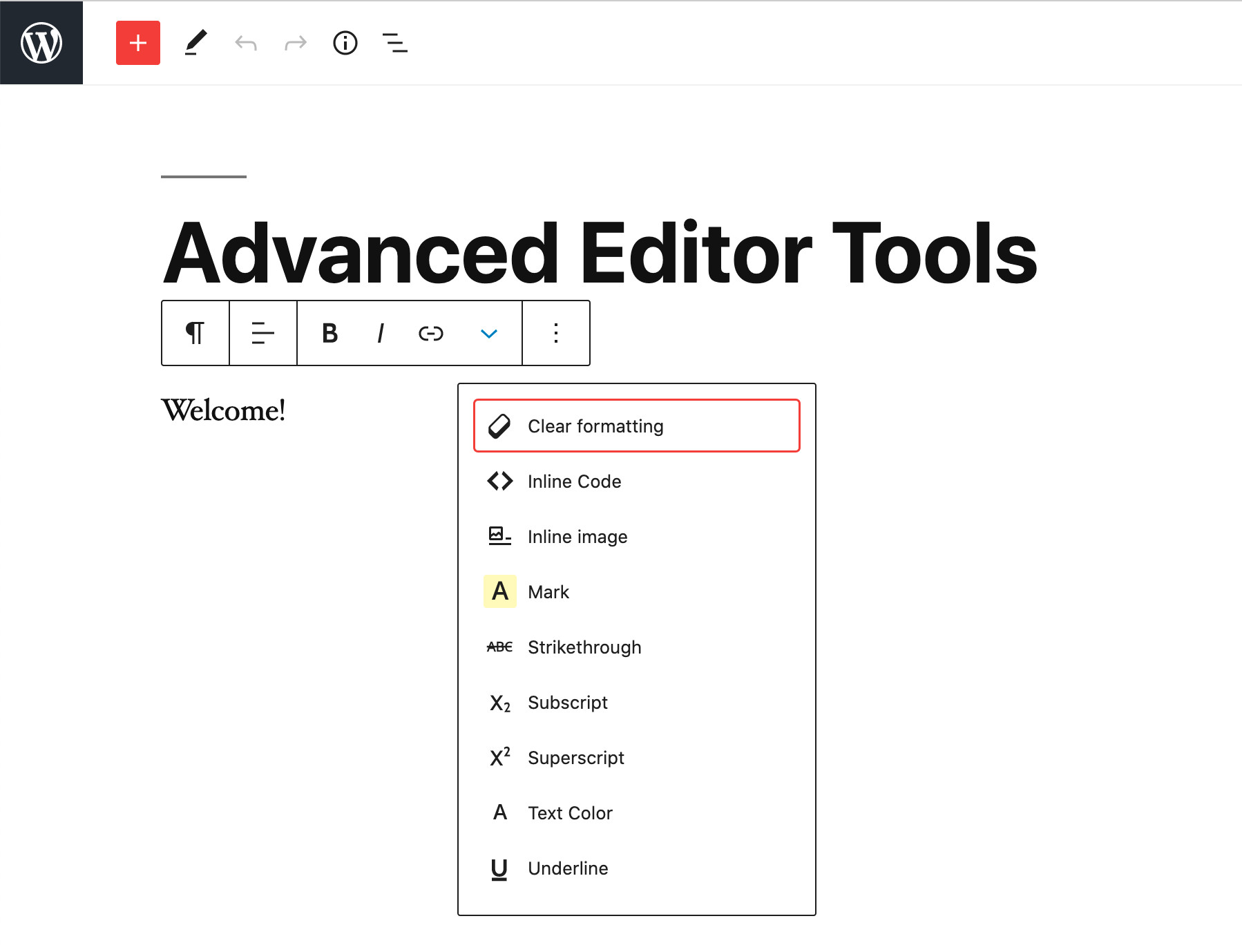
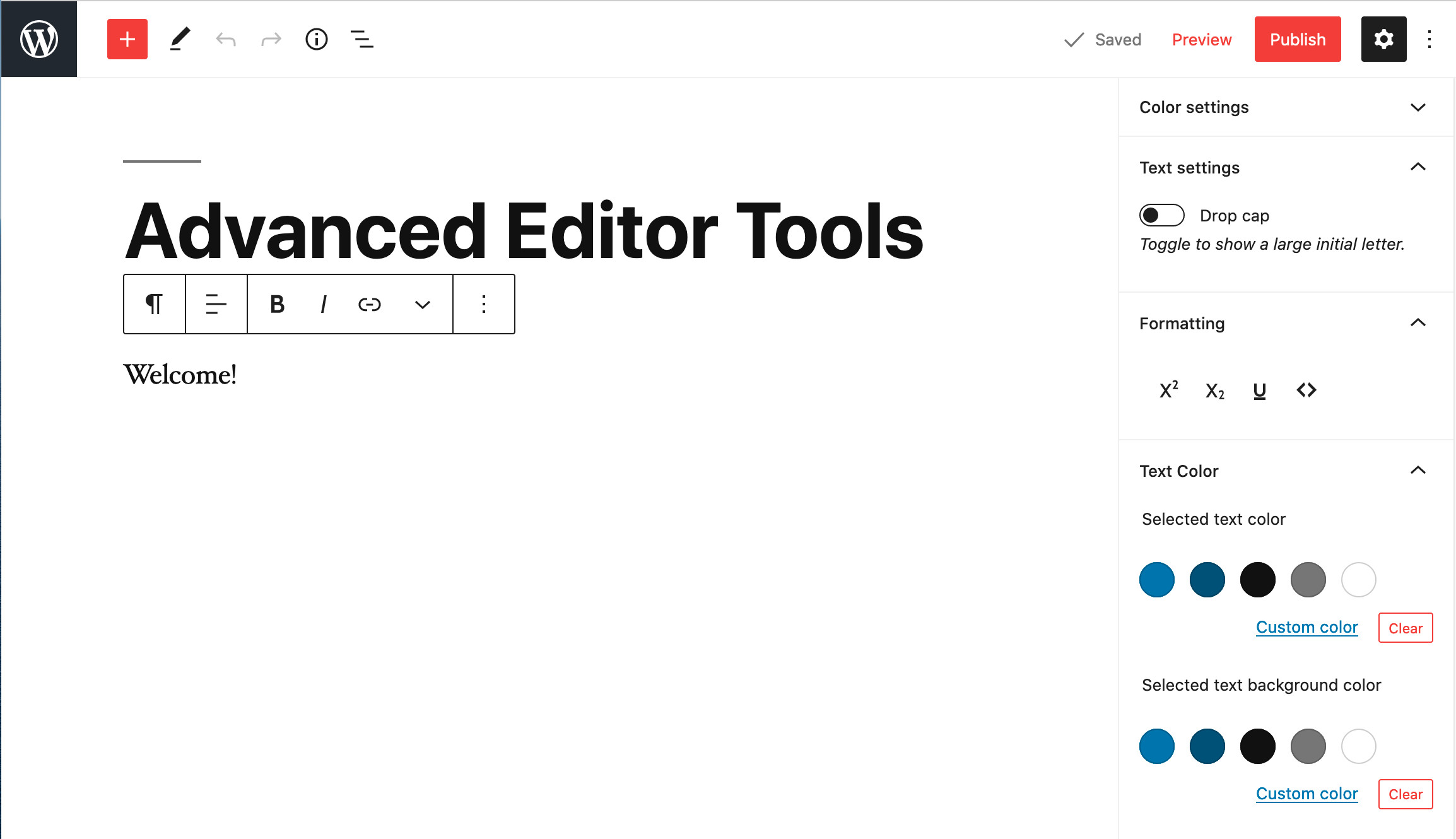
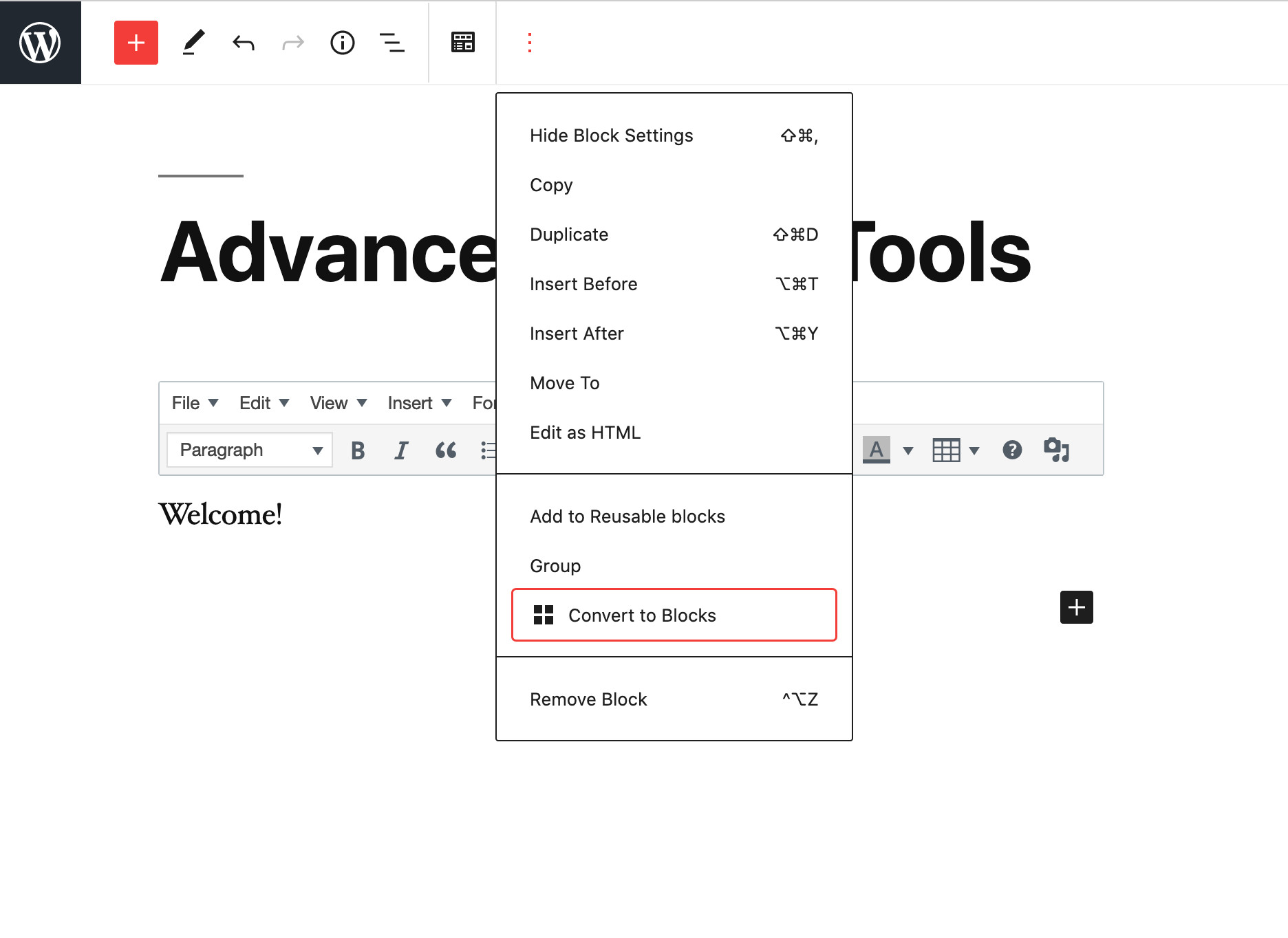
Advanced Editor Tools (previously TinyMCE Advanced) introduces a “Classic Paragraph” block for the block editor (Gutenberg).
If you are not quite ready to switch to the block editor, or have plugins that cannot be used there (yet), using the Classic Paragraph block is your best option. It lets you to continue to use the familiar TinyMCE editor for most tasks, and at the same time gives you full access to all blocks and new features in the block editor.
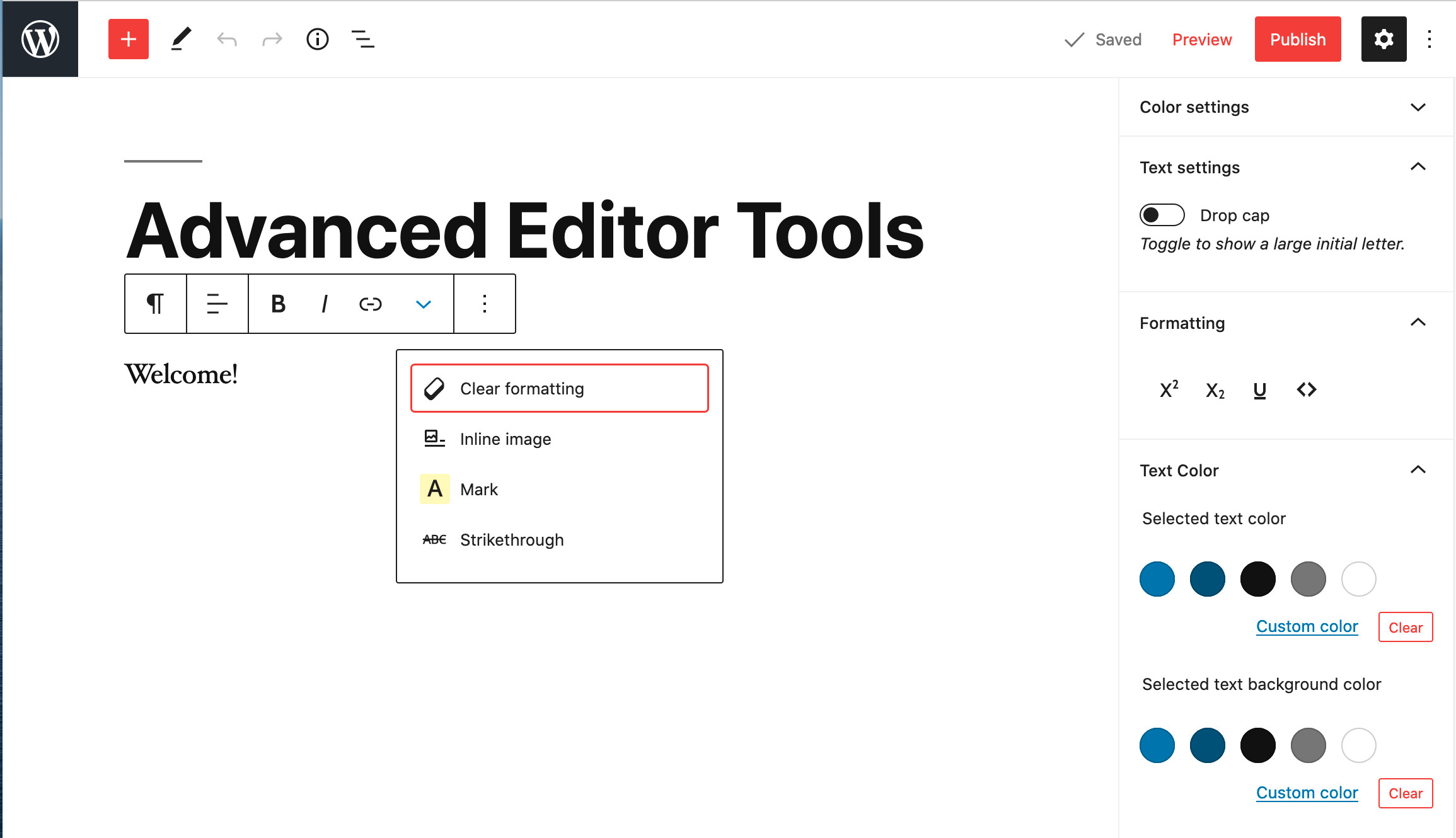
Version 5.5 continues to improve and enhance the new features introduced in version 5.0 of the plugin. It includes an improved “Clear Formatting” button, several advanced settings for tables, and importing and exporting of the settings to a file.
If you want to continue to use the previous (“classic”) editor in WordPress 5.0 and newer, this plugin has an option to replace the new editor with the previous one. If you prefer to have access to both editors side by side or to allow your users to switch editors, it would be better to install the Classic Editor plugin. Advanced Editor Tools is fully compatible with the classic editor plugin and similar plugins that restore use of the previous WordPress editor.
The opening of the plugin's own description. The full text, installation notes and changelog are on its WordPress.org page.
These errors are usually caused by the file in question being blocked by some security setting on the server, or (rarely) by caching issues or wrong permissions.
The first step to debug this is to try to access the file directly in the browser (i.e. copy the URL and paste in the browser and press Enter).
Please see the new (as of version 5.2.0) advanced settings for tables. It is possible to disable use of inline styles for tables but that would make the table non-resizable in the editor. If the advanced tabs on the table, row, and column dialogs are enabled (default), it will still be possible to enter width and height values which are set as inline styles.
These styles are imported from your current theme editor-style.css file. However some themes do not have this functionality. For these themes Advanced Editor Tools has the option to let you add a customized editor-style.css and import it into the editor.
Change some buttons on one of the toolbars, save your changes, clear your browser cache, and try again. If that does not work try reloading the Edit page several times while holding down Shift. There may also be a network cache somewhere between you and your host. You may need to wait for a few hours until this cache expires.
The “Emoticons” button in TinyMCE adds the codes for the smilies. The actual images are added by WordPress when viewing the Post. Make sure the checkbox “Convert emoticons to graphics on display” in “Options – Writing” is checked.
Make sure the “Disable the visual editor when writing” checkbox under “Users – Your Profile” is not checked.
#4 by installs
Enables the previous "classic" editor and the old-style Edit Post screen with TinyMCE, Meta Boxes, etc. Supports all plugins that extend this screen.

#117 by installs
Disable Gutenberg Block Editor and restore the Classic Editor and original Edit Post screen (TinyMCE, meta boxes, etc.).

#25 by installs
Enables the previous "classic" widgets settings screens in Appearance - Widgets and the Customizer. Disables the block editor from managing widgets.

#63 by installs
Gutenberg blocks for existing Spectra websites. Maintained, stable, and fully supported — no action needed on your part.
#102 by installs
20+ Gutenberg Blocks with endless options, enabling top-notch efficiency for high-performance dynamic website creation.

#216 by installs
A small collection of lightweight WordPress blocks that can accomplish nearly anything.
Read from the WordPress.org plugin API on , when WordPress 7.1.4 was the current release. WordPress.org rounds active installs into buckets. These are the directory's figures, not my verdict, and I haven't tested this plugin.