
The Elementor Website Builder has it all: drag and drop page builder, Atomic Editor, pixel perfect design, global and reusable style systems, mobile r …
- Installs
- 10+ million
- Rating
- 4.5 (7.3K)
- Updated
- 18 days ago

See every page as a drag-and-drop tree. Reorder your site structure in seconds — then edit, add and search right there.
| Last updated | September 28, 2026Updated in the last 3 months |
|---|---|
| Tested up to | WordPress 7.1.4Covers WordPress 7.1.4, the current release |
| Needs WordPress | 6.6 or newer |
| Needs PHP | 7.4 or newer |
| First published | March 31, 2010 |
| Support, last two months | 0 of 1 threads resolved (0%) |
4.9 / 5 from 365 reviews
| 5 stars | 345 |
|---|---|
| 4 stars | 9 |
| 3 stars | 4 |
| 2 stars | 2 |
| 1 star | 5 |
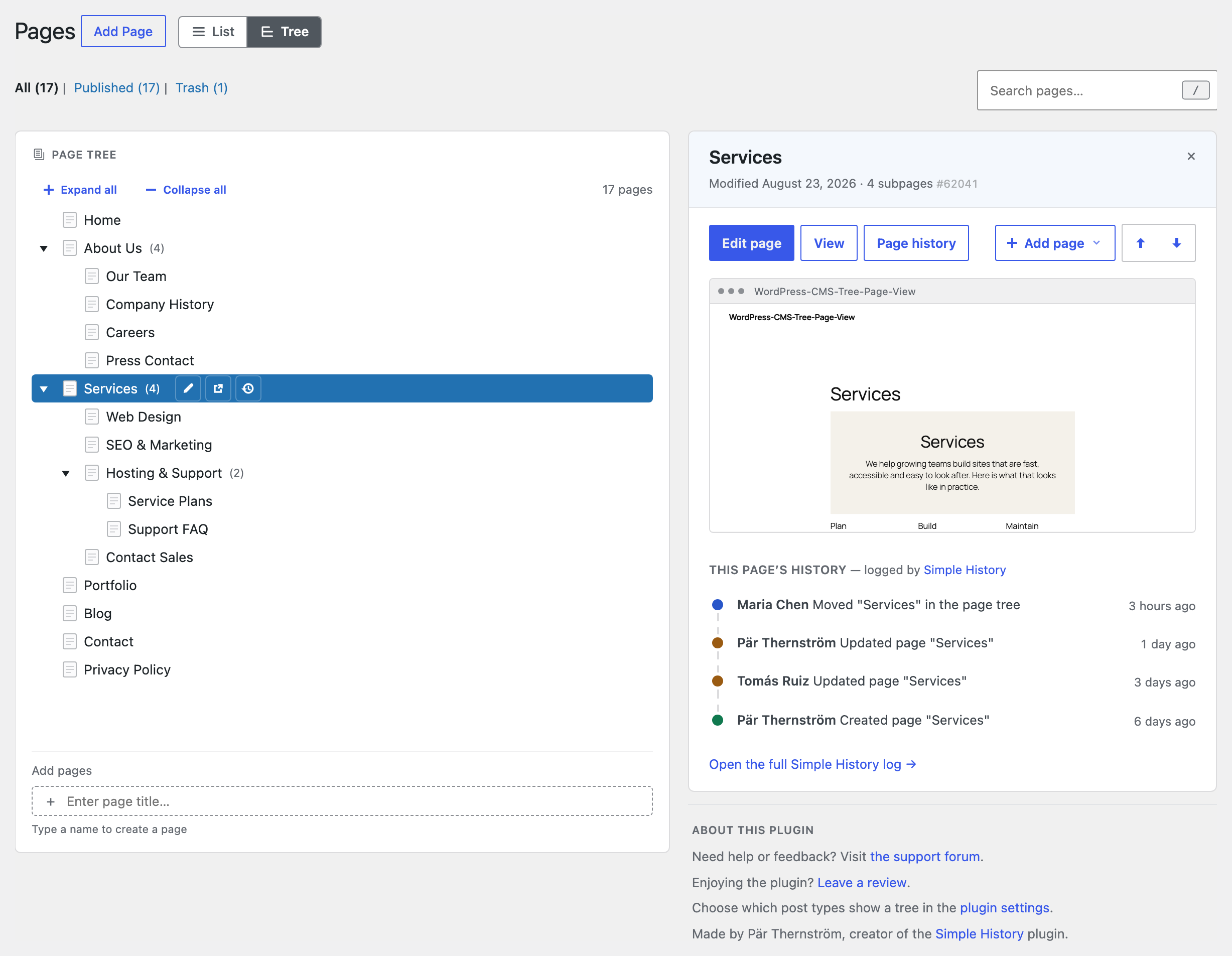
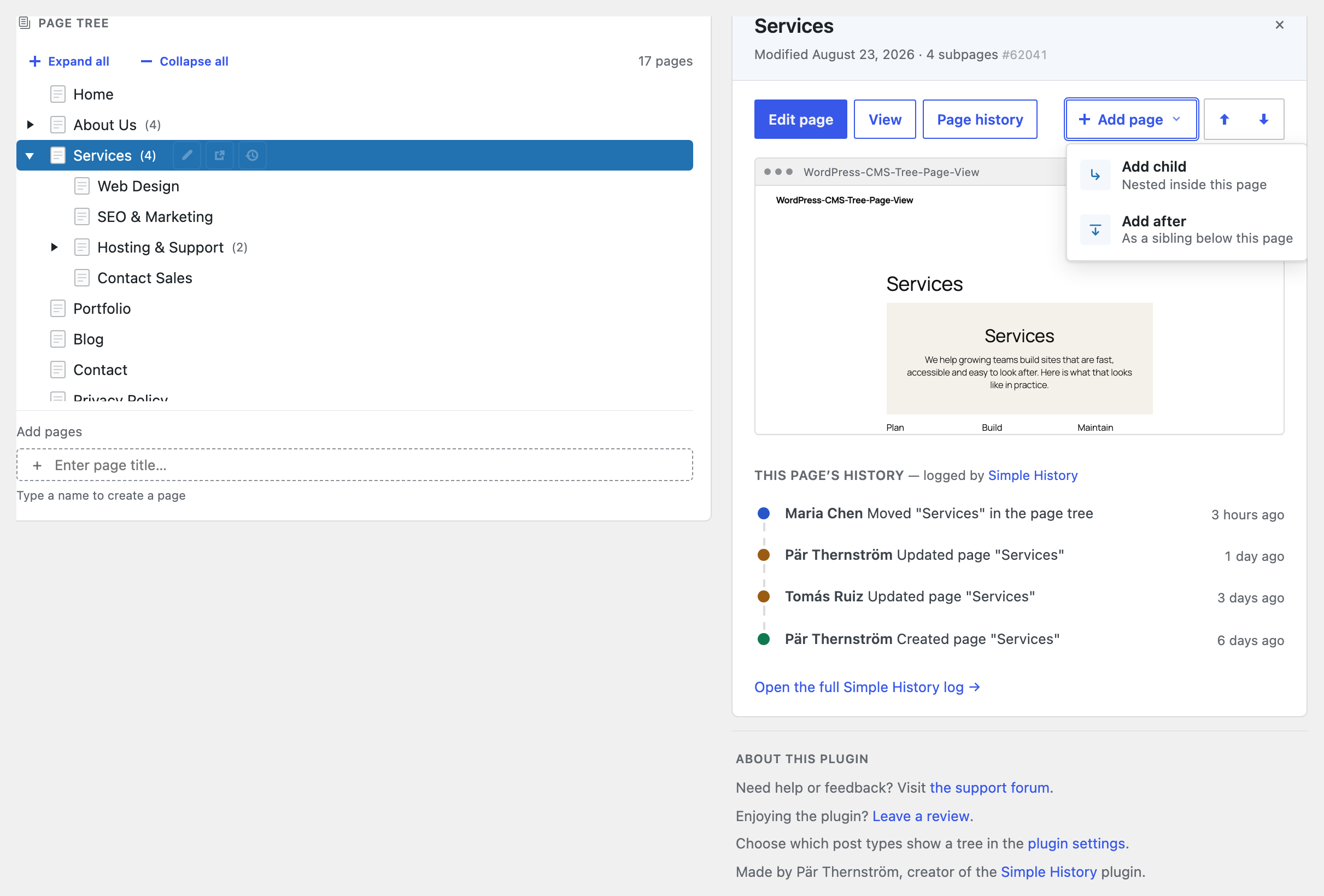
Your whole site, laid out as one clear tree. Drag a page to move it, click to edit, and shape your structure in seconds.
See the tree in action:
CMS Tree Page View gives WordPress the page overview it’s always been missing: one friendly tree of every page and post, so you can finally see how your site fits together — and rearrange it just by dragging.
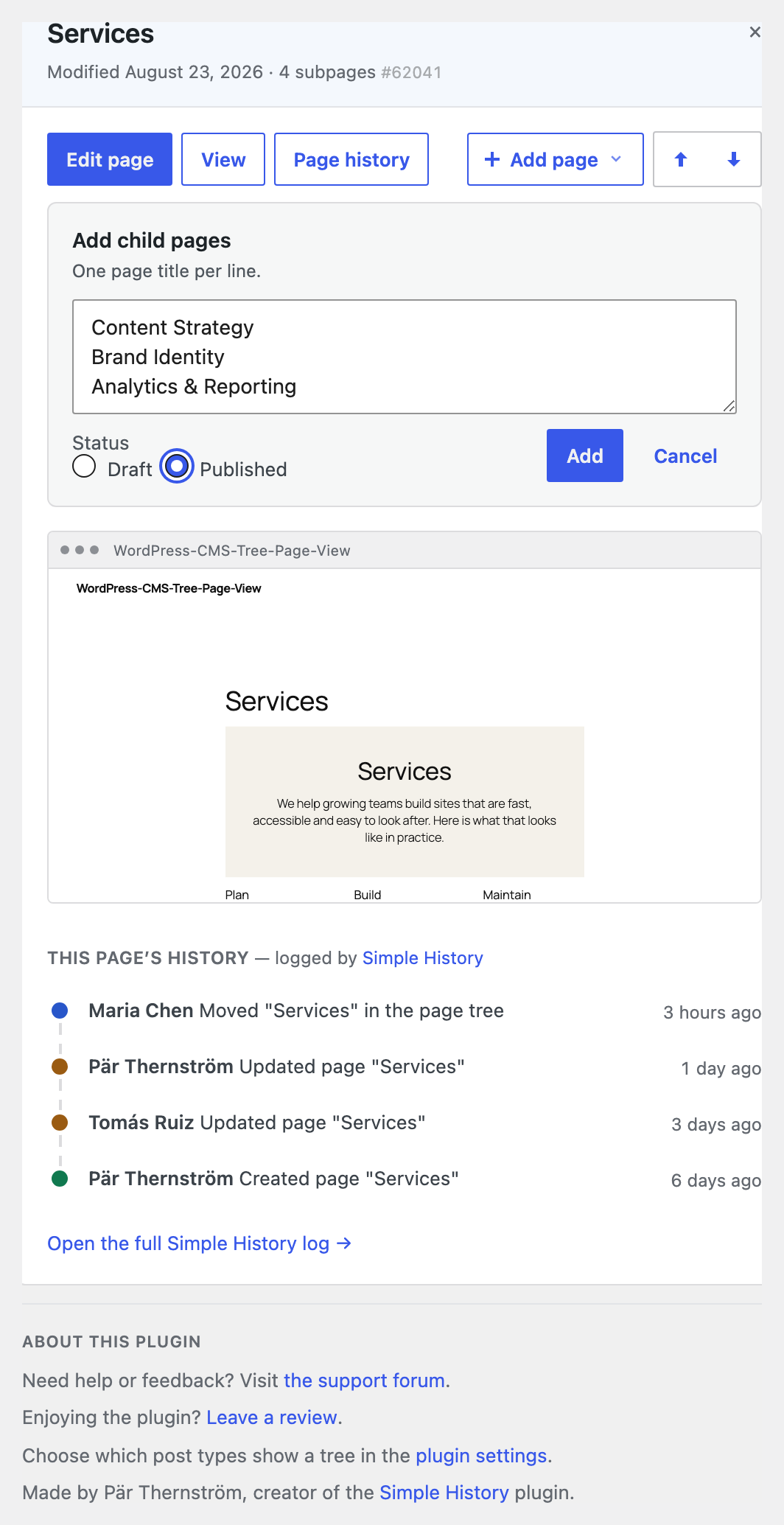
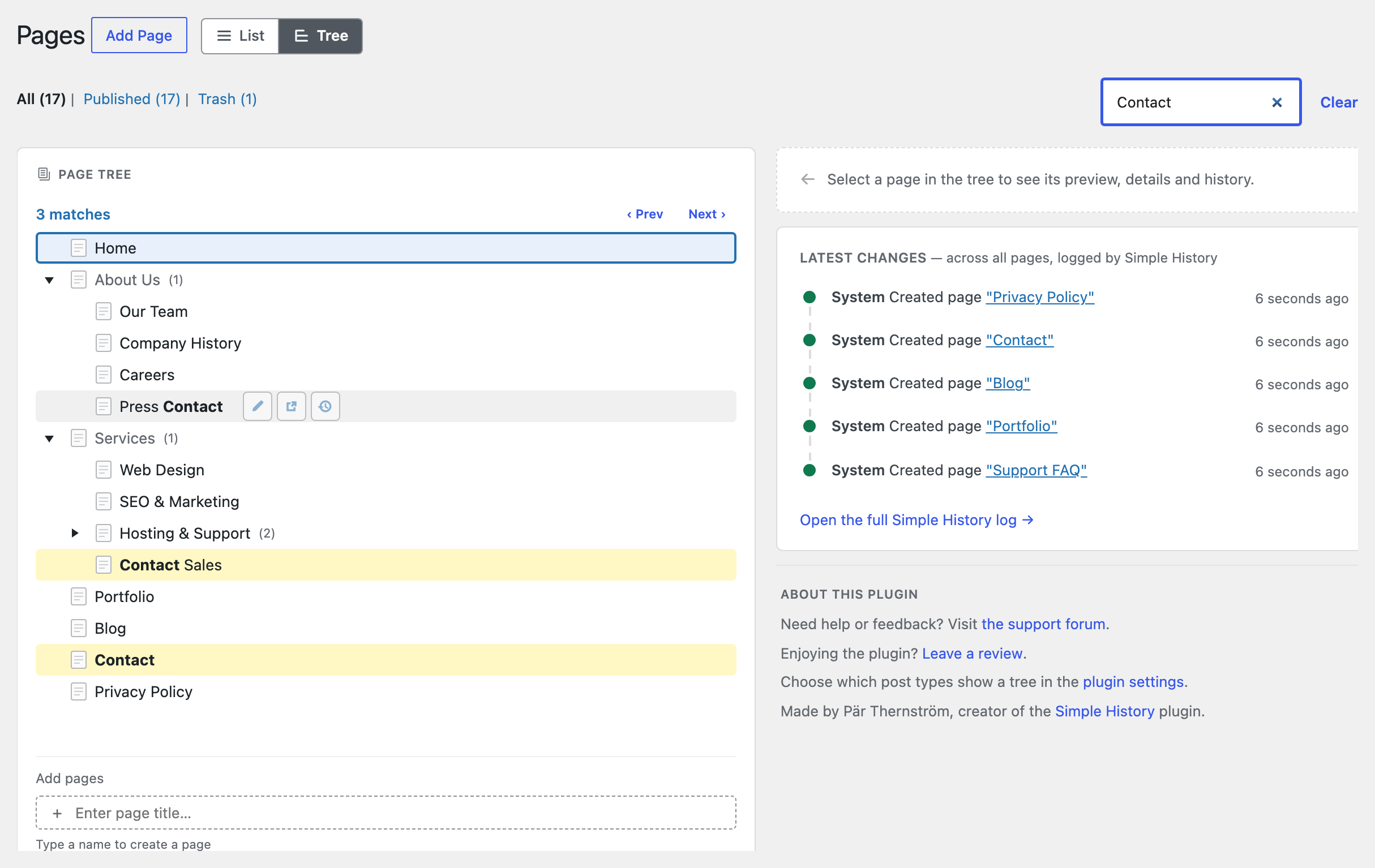
No more clicking through endless paginated lists. Everything’s in front of you: drag a page to reorder or renest it, and edit, add or search right where you are. Setting up a brand-new site? Add a whole batch of pages at once.
Loved by editors, agencies and anyone who looks after a content-heavy site — and actively maintained again by its original author, in use since 2010 and translated into more than 20 languages.
If you also run Simple History — my free activity-log plugin — the tree shows recent changes as you go: pick any page to see its history, or glance at the latest edits across your whole site, without leaving the screen.
Why you’ll like it
The opening of the plugin's own description. The full text, installation notes and changelog are on its WordPress.org page.
CMS Tree Page View saves the order you set as WordPress’ “menu order”. It does not change how your theme or other plugins query and display your pages — that is up to the theme. To show your pages in the same order on the front end, the query that outputs them must sort by menu_order. For example:
This is almost always a JavaScript error from another plugin or your theme that stops the tree from initializing. To track it down:
Any public post type. By default the tree is enabled for hierarchical post types (such as Pages). You can enable or disable it per post type under Settings → CMS Tree Page View.
Yes. The tree works with any public post type — pages, regular posts, WooCommerce products, and your own custom post types — as long as you enable it for that post type in the settings. It works with both hierarchical and non-hierarchical post types, and you can even drag an item from one tree into another to change its post type.
The same ones they can see on WordPress’ built-in Posts and Pages screens. The tree follows WordPress’ own permissions, so each user only sees content they are allowed to manage. For example, a user who can edit only their own content (such as a Contributor) sees their own pages and posts in the tree, not other people’s drafts — exactly as on the standard WordPress overview screens.
Yes — if you also install the free Simple History plugin. When it’s active, CMS Tree Page View shows recent activity right in the tree: select any page to see its own history — who edited it, and when — or open the “Latest changes” feed to see edits, moves and new pages across your whole site at a glance.
The Elementor Website Builder has it all: drag and drop page builder, Atomic Editor, pixel perfect design, global and reusable style systems, mobile r …

#50 by installs
Admin UI for creating custom content types like post types and taxonomies

#128 by installs
Meta Box plugin is a powerful, professional developer toolkit to create custom meta boxes and custom fields for your custom post types in WordPress.

#129 by installs
Freeform page builder & website builder for WordPress. Infinite canvas for complex, interactive websites. Built-in forms, animations & Customizer.

#137 by installs
Build responsive page layouts using the widgets you know and love using this simple drag and drop page builder.

#145 by installs
The most advanced frontend drag & drop page builder. Pagelayer is a light weight but extremely powerful Website Builder.
Read from the WordPress.org plugin API on , when WordPress 7.1.4 was the current release. WordPress.org rounds active installs into buckets. These are the directory's figures, not my verdict, and I haven't tested this plugin. The author takes donations at their donate page.